
Welcome to the Credential Registry Badge Publisher, a powerful and user-friendly tool available through the Credential Registry Publishing System.
How It Works:
The Credential Registry Badge Publisher simplifies the process of importing badge information from a badging platform into the Credential Registry through three easy steps:
- First, it maps the metadata of Open Badges to CTDL and prepares it for import into the Credential Registry Publishing System.
- Next, it provides a user-friendly interface that allows you to edit badge information if necessary.
- Finally, it saves the badge information for review and approval before publication. The badge publisher also offers alignment to the Credential Finder, allowing you to save those connections back to the badging platform and connect your published badges to the broader Credential Registry ecosystem.
Getting Started
Before you begin, make sure you have:
- A Credential Registry Publishing System Account
- Access to the organization(s) issuing the badges
- Access to your badging platform (and any permissions required to authorize the connection)
- Your badges published or available in Open Badges format
How to Import Your Badges
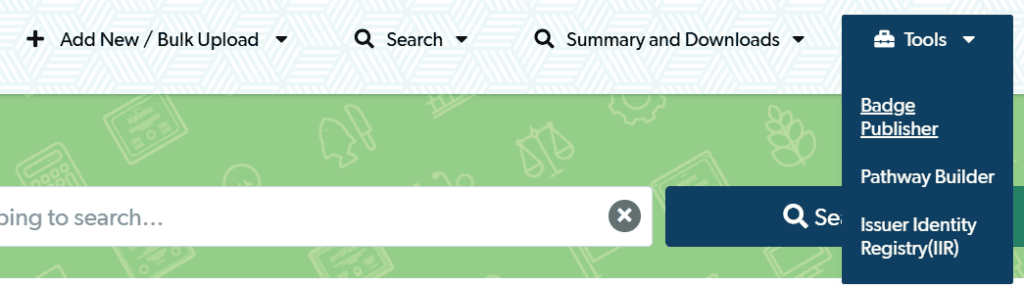
Whichever platform you use, the overall process is the same:
- Log in to your Credential Registry Publishing System account, then select Credential Publisher.
- Navigate to the Badge Publisher.
- If your account is linked to more than one organization, select the right one and continue.
- Choose your source type — Parchment Digital Badges, Credly, or JSON — then follow the platform-specific steps below.
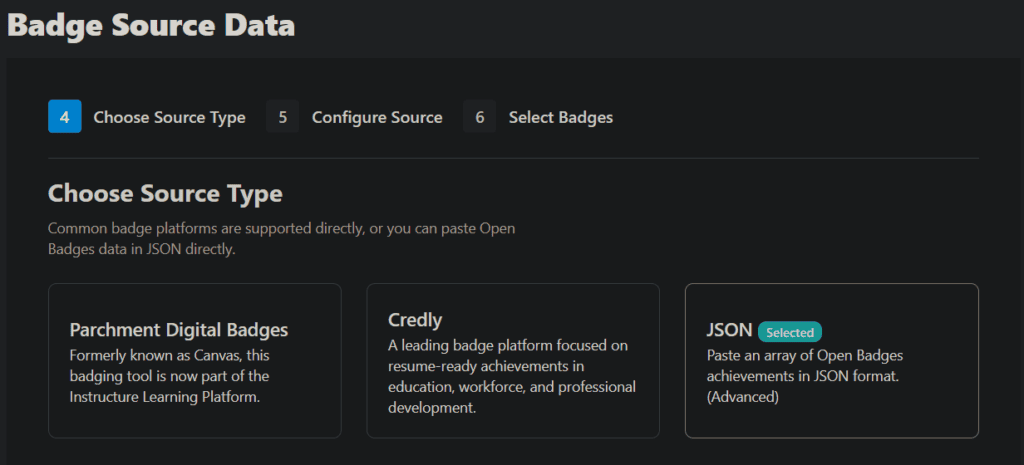
Import from Parchment Digital Badges
- Sign in to your Parchment Digital Badges account when prompted.
- Select the region matching where your organization’s data is held, then log in to authorize.
- Load your issuer(s) and select the organization whose badges you’re importing.
- Select the badges you want to bring into the Credential Registry and finish badge setup.
Import from Credly
- Enter your Credly issuer URL, save, and agree to terms.
- Load your issuers and select which badges to import.
Import from JSON (Copy and Paste)
-
- Select JSON as your source type.
- Paste an individual badge or an array of badges in Open Badge 2.0 or 3.0 format.
- Import, and confirm the badges that were found.
Editing and Publishing
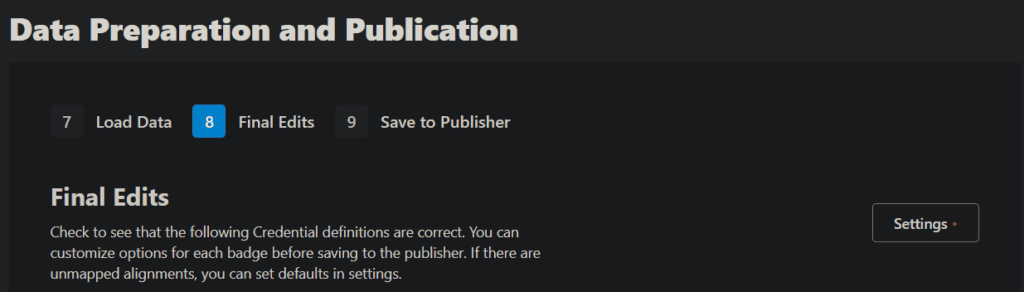
Once your badges are imported, you can edit them in the Credential Registry Publishing System — this doesn’t affect the badges on your original platform.
If you don’t edit anything, these fields import as-is: credential type, badge name, description, image, identifier, tags, criteria description, and criteria URL.
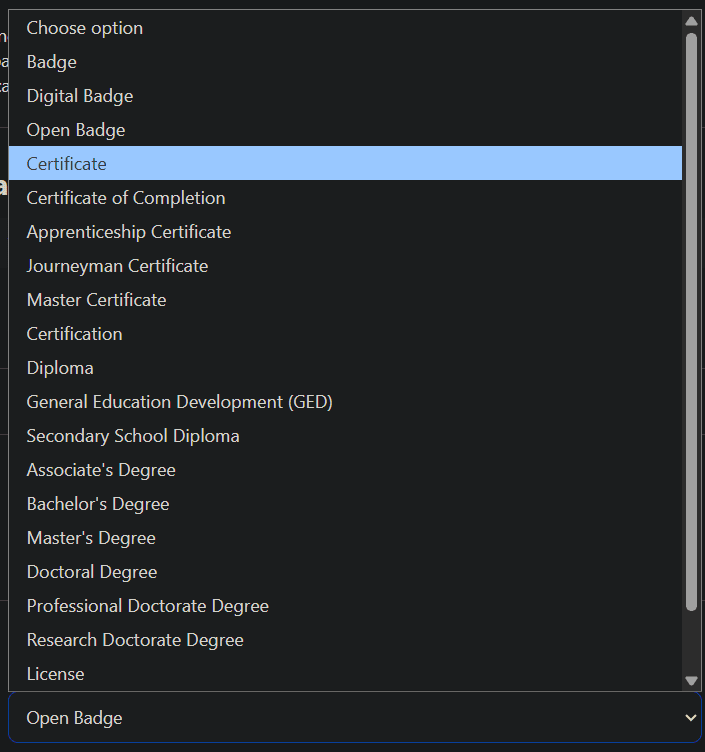
By default, the Badge Publisher sets the credential type to Open Badge. This can be changed to reflect what you’re actually publishing as the tool supports a full range of credential types, including Digital Badge, Certificate, Certification, Diploma, degrees (Associate’s through Doctoral), License, and more. Select the option from the dropdown that best matches the credential you’re describing.
Alignments matter. Alignments connect your badge to related knowledge, skills, competencies, or other resources. If your badges include alignments, you’ll need to map them to CTDL or they won’t import.
Select Edit next to Alignments, choose the correct CTDL alignment (Resource Type and Connection Type are both required — Credential types also need a subtype), then select Finished Editing for each badge.
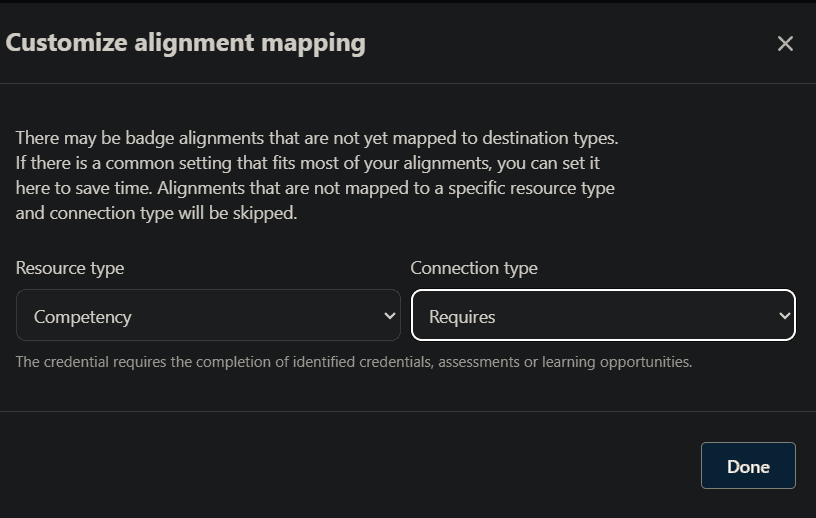
Once everything’s edited, select Next Step, then Save All and Finish Publication.
Important Note: for first time users, there is a verification profile that will be created as part of the process. This needs to be approved and published before you can approve badges for publication. Simply take the following steps:
- Navigate to your Organization Summary Page
- Click on the tab for Verification Service Profiles
- Find the profile that begins with “Open Badges verification”
- Approve it
- You will receive a confirmation email once it has been published

This step is only necessary the first time you use the Badge Publishing Tool. After the Verification Service Profile has been published, you can return to your Organization Summary and approve your badges for publication.
After You Publish
You’ll get an email confirming your approval, and a CE team member will publish your credentials (typically within one business day) — you’ll get a second email once they’re live. You can find them via the Credential Finder, searching by credential or by organization.
Congratulations! Your badge is now part of a searchable credential ecosystem.