
Credential Registry Guidance · Publishing
Publish Credentials
Add credentials to the Credential Registry using whichever method fits how your organization already manages its data. The available methods are: a bulk CSV upload, manual entry, or the Registry Assistant API.
Which method should you use?
Most organizations settle on one method based on how their credential data already lives day to day, rather than trying all three. Bulk upload is the recommended default, and suits organizations that already keep their credential data in a spreadsheet or an export from their SIS, LMS, or other program asset management system. Manual entry suits organizations publishing a handful of credentials, or updating an existing one by hand. API suits organizations that want their own system to publish and keep credentials current automatically, without anyone opening the Publisher application at all.
Issuing credentials as digital badges? The Badge Publisher can import badges you already issue through Credly or Parchment, or from JSON, so you don't have to enter them by hand. Get started with the Badge Publisher
Before you begin, make sure:
- Your organization's account with Credential Engine is approved and active. Not sure whether your organization already has one? Check for an existing account, or set one up.
- You know your credential type(s). Examples include Certificate, Certification, Digital Badge, License, and so on. If you're not sure, check the credential type definitions.
- You have the credential's core details on hand: Name, Description, Subject Webpage, and the organization that owns it, at minimum.
- If you're linking this credential to learning opportunities, assessments, or competency frameworks, you've read how to connect related data.
- You know your goal. CTDL allows for a robust set of data elements to be included, and while there's a Minimum Data Policy and recommended benchmarks, your use case might still benefit from including an optional data element.
Required vs. recommended fields
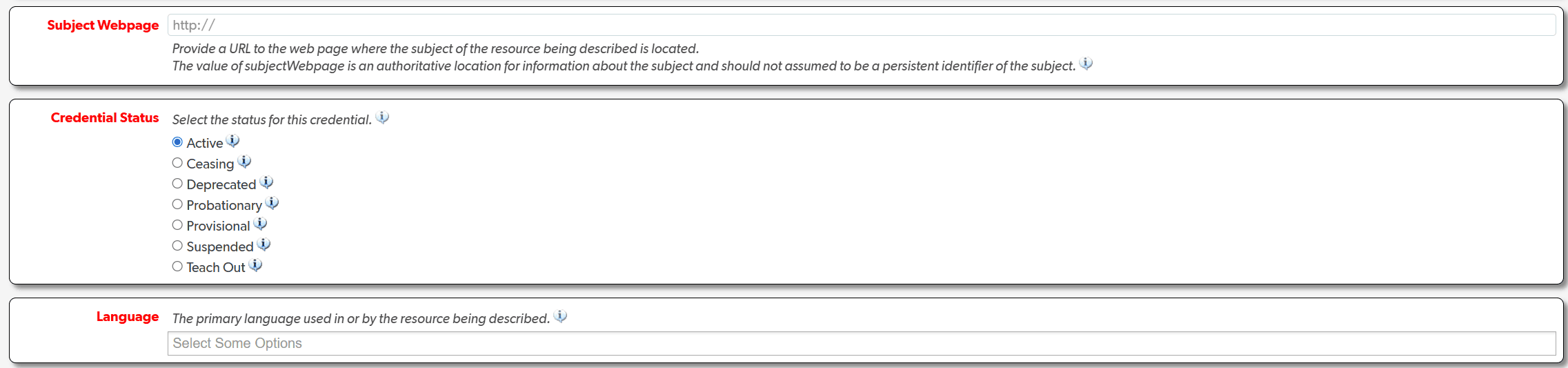
You must include these: Credential Name, Credential Description, Primary Organization and Role, Credential Type, Subject Webpage, Credential Status, and Language. These same fields are required no matter which method you use to publish: leave one blank in a bulk upload row and that row gets flagged during validation; enter them by hand and the Publisher won't let you save the record without them.
There are recommended benchmark properties as well — none are required to publish, but each adds information that makes the credential easier to find, evaluate, or trust.
See the recommended benchmark properties (22)
| Data element | What it means | Why it's valuable |
|---|---|---|
| Available Online At | Direct URL where someone can start pursuing the credential online. | Gives learners a one-click way to begin, instead of hunting for a start page. |
| Availability Listing | A URL listing in-person locations where the credential can be pursued. | Helps learners who want an in-person option find where to go. |
| Available At | Physical location(s) tied to this credential, referenced by Address ID. | Connects the credential to specific addresses already on file for your organization. |
| Available At Codes | Same as Available At, but referenced by your own external location identifiers. | Lets you reuse identifiers from your own systems instead of Registry Address IDs. |
| Available At Offered By Orgs | Pulls in every address on file for the listed offering organization(s). | Saves you from listing individual addresses when a whole partner organization's locations apply. |
| Offered By | The organization(s) that actually offer the credential, if different from the owner. | Clarifies who delivers the credential when it isn't the owning organization. |
| Accredited By | The organization that accredits the credential. | A recognized quality signal learners and employers look for. |
| Approved By | The organization that formally approves the credential. | Documents an added layer of outside quality assurance. |
| Regulated By | The organization that regulates the credential. | Important context for credentials tied to licensure or regulatory oversight. |
| Recognized By | The organization that recognizes the credential. | Captures industry or professional recognition beyond formal accreditation. |
| Date Effective | The first date the credential was offered. | Shows learners and employers how established the credential is. |
| Keywords | Search terms that help people find this credential. | Improves how easily the credential surfaces in Credential Finder searches. |
| Estimated Duration | How long the credential typically takes to complete. | Lets learners gauge the time commitment before they enroll. |
| Estimated Duration Description | Free-text detail clarifying the estimated duration. | Adds nuance a single number and time scale can't capture, like self-paced ranges. |
| Audience Level Type | The intended audience level (e.g. Beginner, Postsecondary). | Helps learners self-select credentials matched to where they're starting from. |
| Industry Type | Industries the credential applies to, by name. | Connects the credential to the real-world industries employers search by. |
| NAICS List | The same industries, as standardized NAICS codes. | Enables precise, machine-readable matching against labor-market data systems. |
| Occupation Type | Occupations the credential applies to, by name. | Links the credential to the specific job roles learners and employers search by. |
| O*NET List | The same occupations, as standardized O*NET codes. | Enables precise, machine-readable matching against occupational data systems. |
| Has Rubric | A pointer to an existing assessment rubric in the Registry. | Adds transparency about exactly how the credential is assessed. |
| Learning Method Type | How the learning is delivered (seminar, apprenticeship, self-paced, etc). | Tells learners what the actual learning experience will look like. |
| Renewal Frequency | How often the credential must be renewed. | Sets clear expectations for credentials that expire or require upkeep. |
Need the full breakdown by credential type? See the Minimum Data Policy.
Choose a publishing method to get tailored guidance
Publishing by bulk upload
Watch a video walkthrough
1Open the Bulk Upload tool
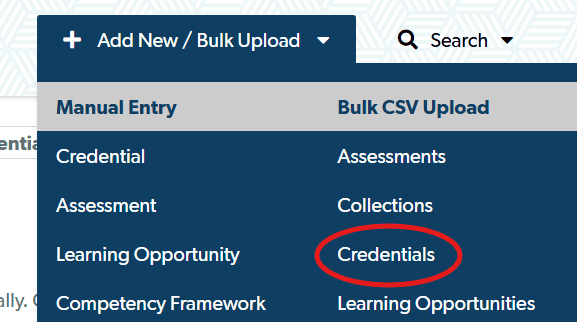
Log in to the Publisher application, open the Add New/Bulk Upload dropdown, and choose Credentials under the gray Bulk CSV Upload subheading.
When accessing the Bulk Upload tool, the Select Your Organization option will be located at the top of the page. If only one organization is associated with your account in our system, the tool will automatically select the appropriate organization from the dropdown menu. However, if multiple organizations are linked to your account in our system, you will need to choose the correct organization from the dropdown menu.
Screenshots (2)

2Select your properties and download the template
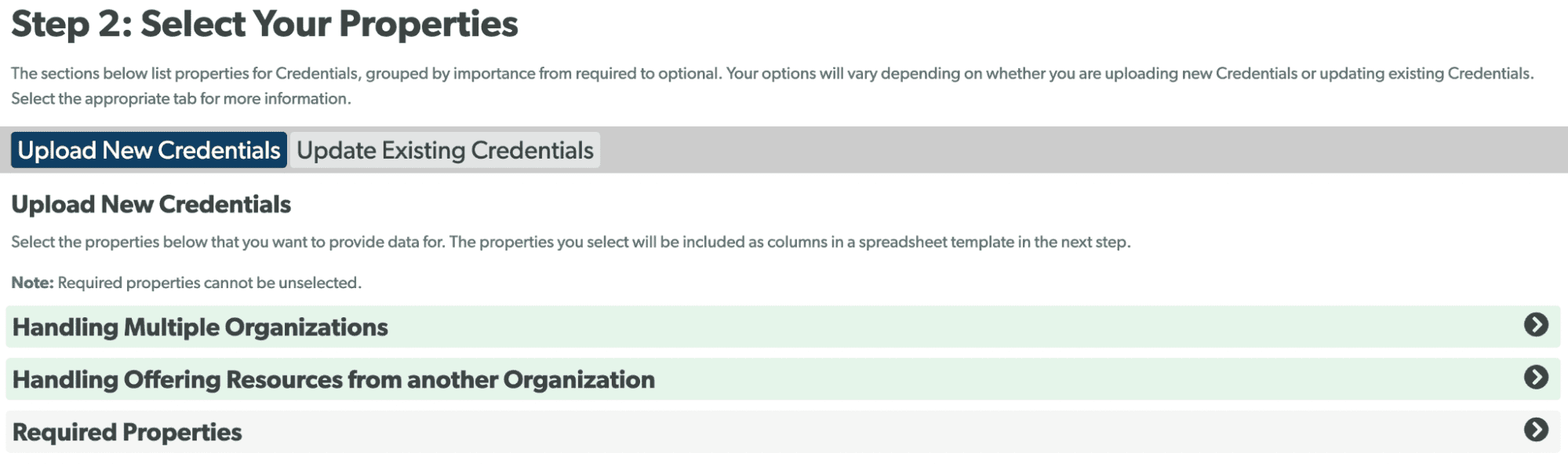
Under Step 2: Select Your Properties, the Required Properties tab is preselected and will be included in your spreadsheet automatically — these are the fields covered above, plus an External Identifier (see step 3). They are categorized as Tier 1 Equity Benchmark data, which is indicated by a signal icon featuring one bar next to each property.
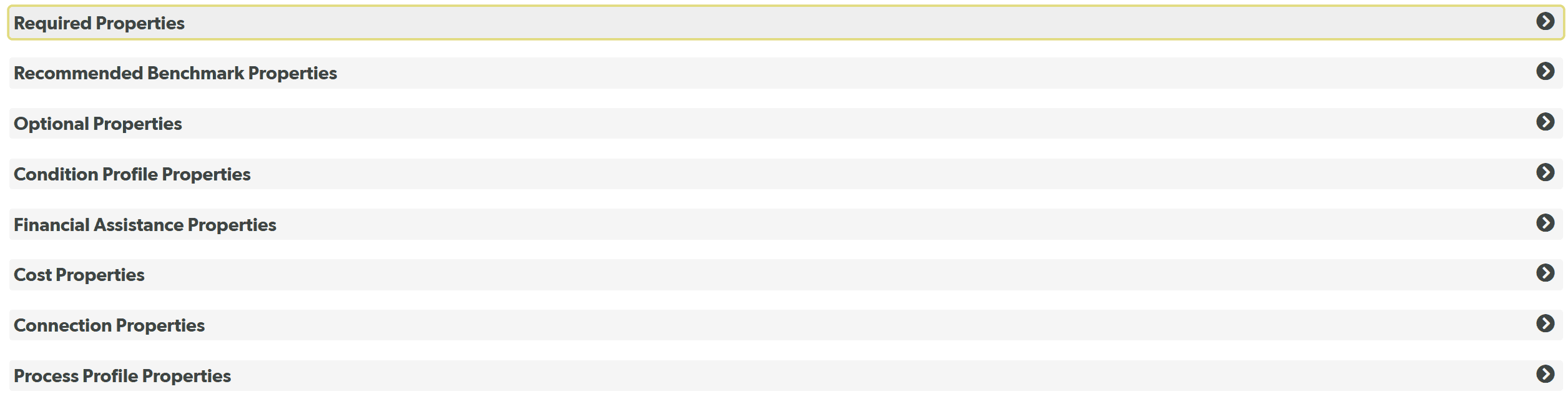
To add optional properties, expand any of the other tabs: Recommended Benchmark, Optional, Condition Profile, Financial Assistance, Cost, Connection, or Process Profile Properties. Each property lists a description, an example, and its formatting requirements.
When you're ready, under Step 3: Download Your Template Spreadsheet, check Include Sample Data and Include Instructions, then select Download Template Spreadsheet. It downloads as a .csv — open it in Google Sheets or Excel to fill it in.
Screenshots (4)


3Fill in the template, then clean it up before uploading
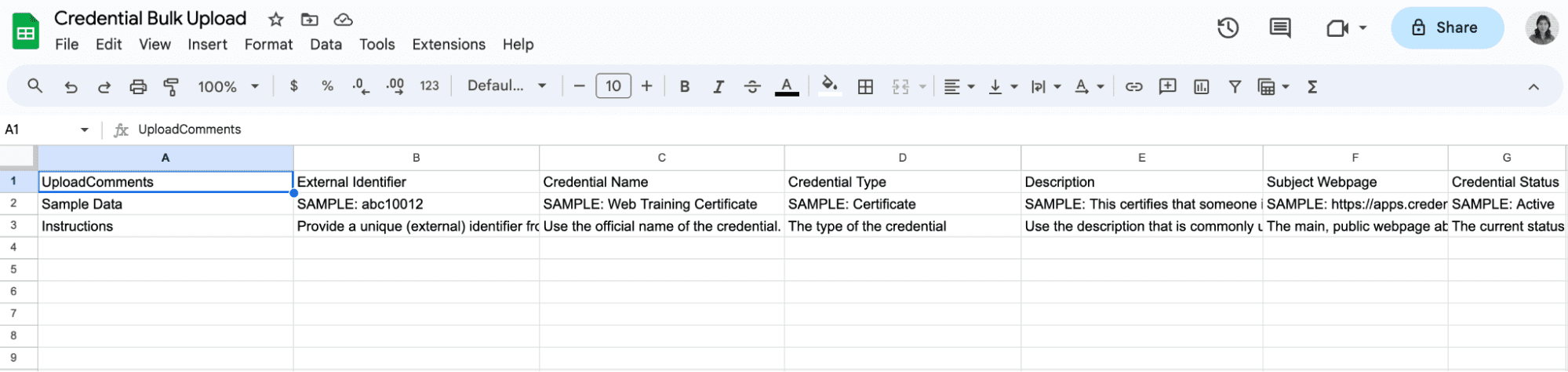
Row 1's column headers match the properties you selected; rows 2 and 3 hold sample data and instructions for each one — use them as a reference while you fill in one row per credential below.
External Identifier is required for every row (unless you're providing the credential's CTID instead), and it's your own ID for the credential: a program code or even the program name works, up to 100 characters. It isn't a CTID, and it isn't published to the Registry. The tool uses it to recognize the same credential on later uploads, so pick something that won't change. If it changes, your next upload creates a duplicate record instead of updating the existing one.
Before uploading, delete column A along with rows 2 and 3 (leaving them in causes errors), and save the file as a .csv.
Screenshots (2)

4Upload your file and check the summary
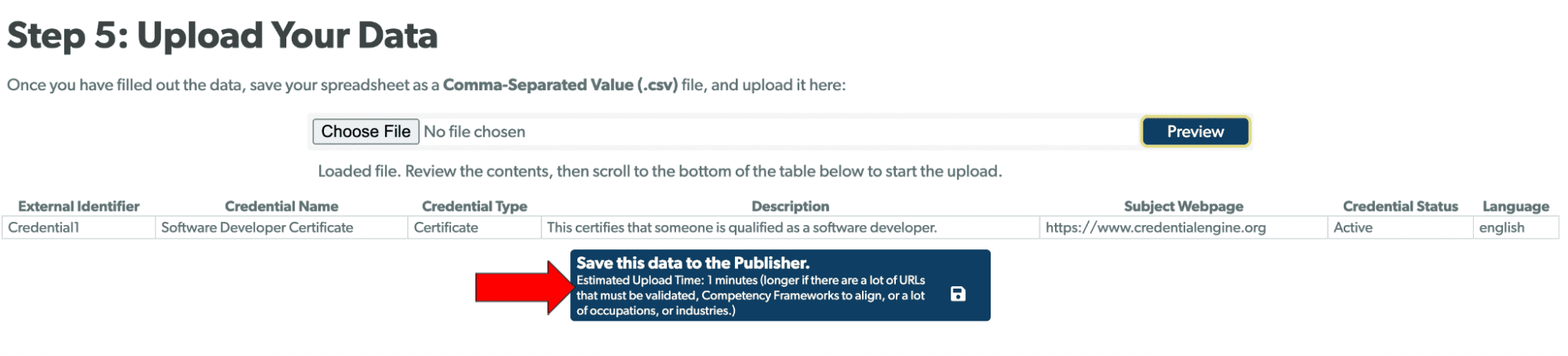
Under Step 5: Upload Your Data, choose your completed .csv, then select Preview to check it over — the tool rebuilds your spreadsheet with the selected properties as column headers. When you are ready to upload, select Save this Data to the Publisher.
You'll get a notification once processing finishes, with a summary of what uploaded successfully and any errors to fix.
Screenshots (2)

5Approve the credentials
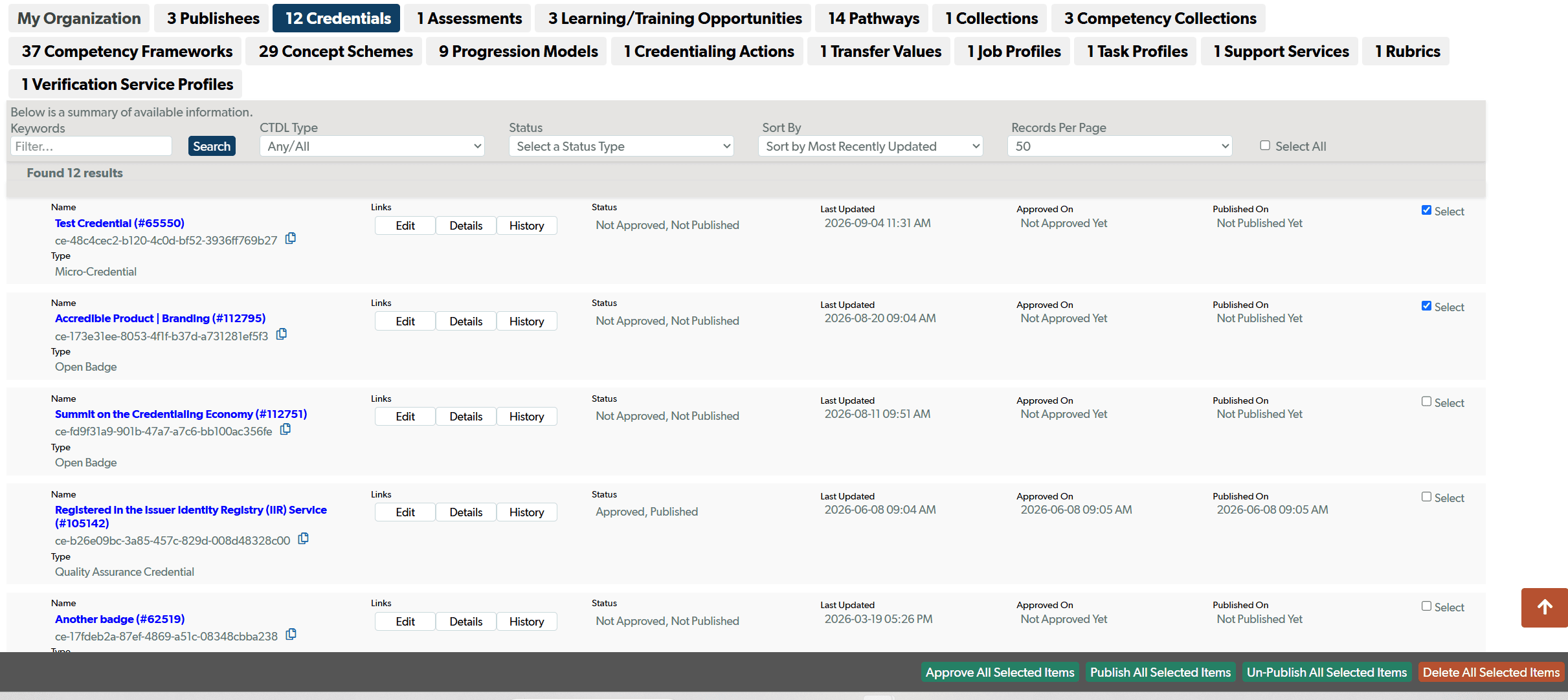
Under Step 6: Approve Your Credentials, follow the link to your Organization Summary Page, open the Credentials tab, select the new Credential(s) you just uploaded, then choose Approve All Selected Items. (Your organization's own account has to be approved first, under the My Organization tab, before it can approve credentials.)
Once approved, the Credential Engine team will be automatically notified. Someone from the team will review the credential and publish it, and you'll receive an email confirmation when that happens. It typically takes about 30 minutes for a credential to appear on Credential Finder from the time it's published.
Screenshots (2)

Publishing manually
Watch a video walkthrough
1Open the credential record
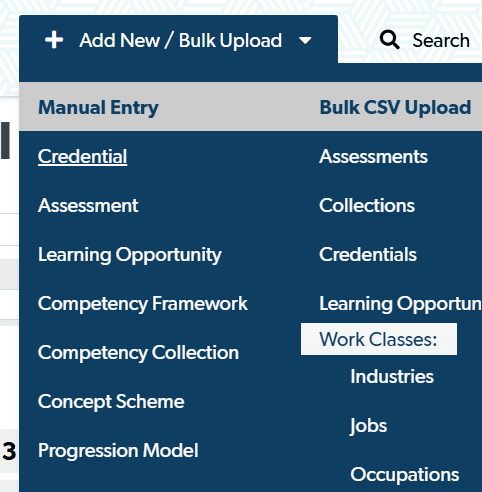
Log in to the Publisher application, open the Add New/Bulk Upload dropdown, and choose Credential under the gray Manual Entry subheading.
Screenshot
2Describe the credential and who owns it
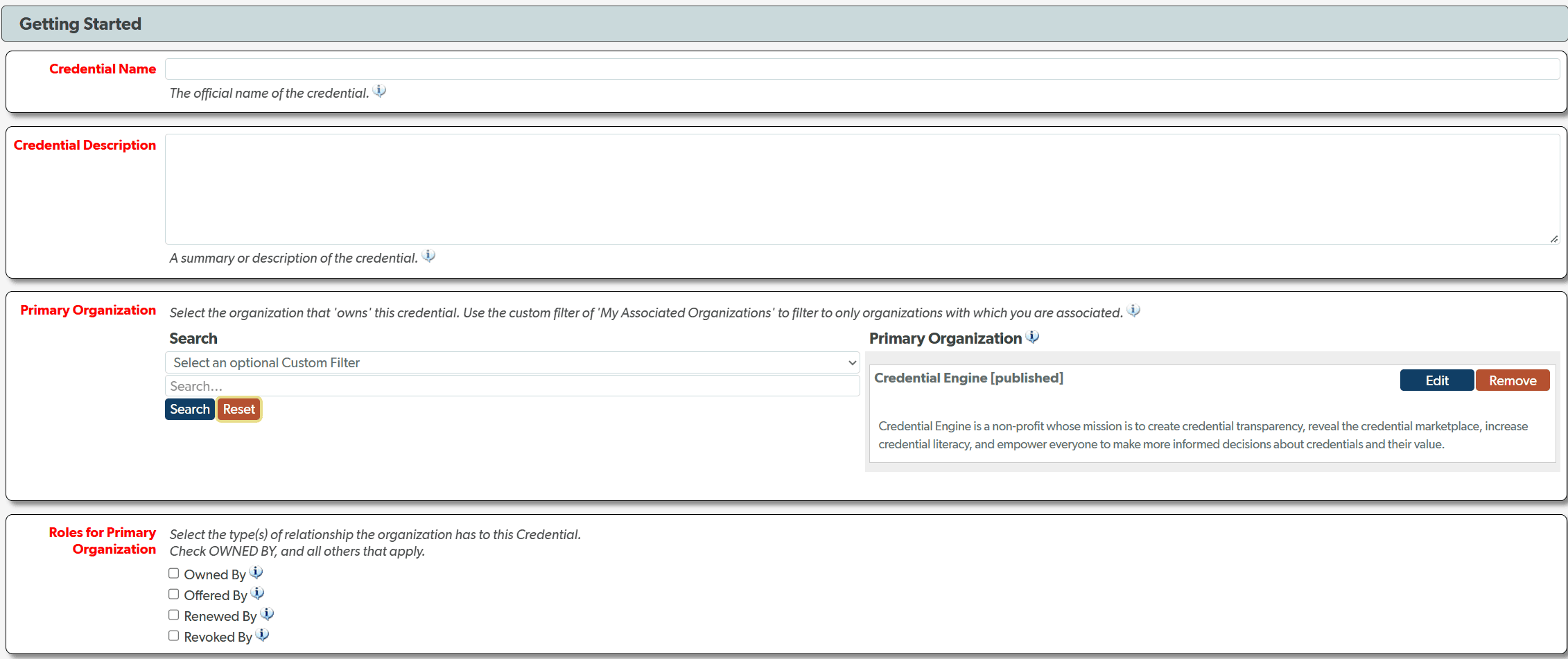
Fill in Credential Name and Credential Description, then search for and select your organization under Primary Organization.
Under Roles for Primary Organization, check Owned By, plus any other roles your organization plays for this credential (Offered By, Renewed By, Revoked By). Hovering over the blue information bubble next to any field will provide more context if needed.
Then choose the Credential Type that best describes the credential.
Screenshots (2)
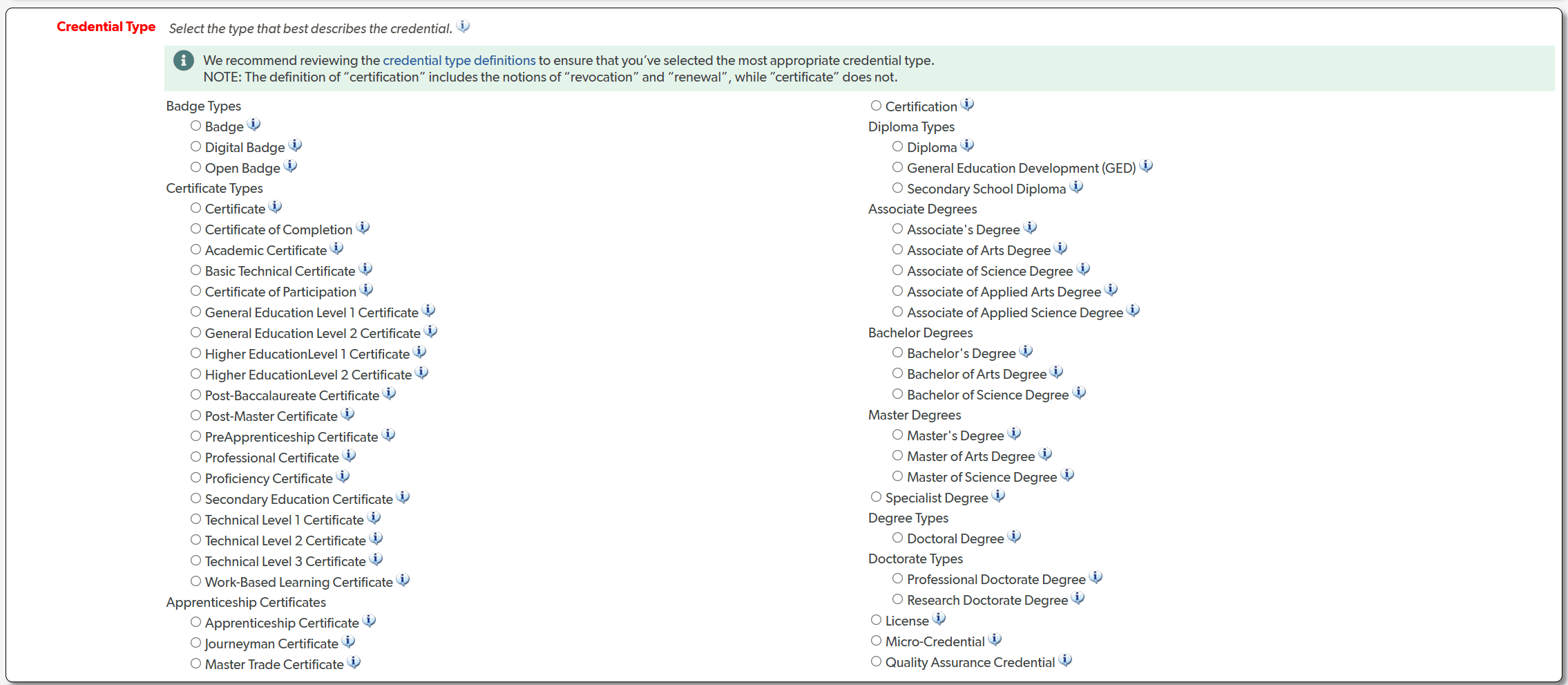
Carefully review Credential Type
We recommend reviewing the credential type definitions to ensure that you've selected the most appropriate credential type. Use the list of credential classes on that page (Badge, Certificate, Degree, and so on), not the Credential Status Types.
For example, the definition for a "Certification" includes the notions of "revocation" and "renewal," while "Certificate" does not.
Also issued as a digital badge? Still choose the type that describes the credential itself, like Certificate or Certification. The badge types are only for credentials that exist solely as badges.
3Add the webpage, status, and language, then save
In Subject Webpage, enter the URL of the page that describes this specific credential (not your organization's home page).
Set Credential Status. Choose Active for a credential currently on offer, or one of the other status options if that fits better. Then choose the credential's primary language from the Language field.
The remaining fields are all optional. The Credential Engine team encourages users to include any additional information that is relevant to their credential(s).
Select Save Data when the record is complete.
Screenshots (2)

4Approve the credential
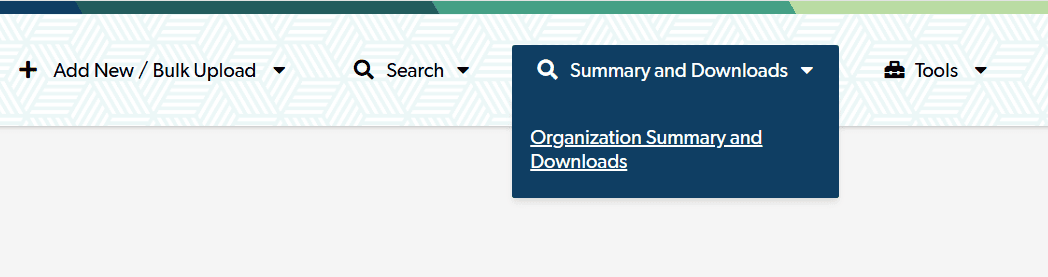
Saving the record doesn't publish it. Go to Summary and Downloads > Organization Summary and Downloads, open the Credentials tab, select any newly entered records, and choose Approve All Selected Items. (Your organization's own account has to be approved first, under the My Organization tab, before it can approve credentials.)
Once approved, the Credential Engine team will be automatically notified. Someone from the team will review the credential and publish it, and you'll receive an email confirmation when that happens. It typically takes about 30 minutes for a credential to appear on Credential Finder from the time it's published.
Screenshots (2)
Publishing via the API
Use the Registry Assistant Handbook
API publishing is covered in full on credreg.net, Credential Engine's technical site. The Registry Assistant Handbook has the endpoints, every property, and code samples for publishing a credential.
Your organization's account needs API publishing approved before you start.
After you publish
Bulk upload and manual entry aren't one-and-done. Plan to revisit the record whenever the credential's details change, per your organization's Data Currency Policy.
Stuck, or have a question about your data? Email the Publishing team at publishing@credentialengine.org.