
Credential Registry Guidance · Accounts
Account Setup and Access
Check whether your organization already has an account, then set one up or get added to it. Choose a task below to see just the steps you need.
What do you need to do?
Set up a new account
Before you begin, make sure:
- You have a work email address.
- You know your organization's name and website, plus its type and sector.
- You have a rough idea of how many credentials, learning opportunities, or other records you'll publish. A guess is fine.
You don't need to be technical, and you don't need to know yet how you'll publish. Bulk upload and manual entry are open to everyone.
1Check whether your organization already has an account
Go to Credential Finder, choose Organizations, and search for your organization's name. Try a shorter version of the name too (for example, "Lakeside" instead of "Lakeside Community College District").
- Your organization shows up: it already has an account. Don't create a new one. Go to Join an existing account.
- It doesn't show up: continue to step 2. Read the caution below first.
Not in Credential Finder doesn't always mean no account
Credential Finder only shows organizations whose accounts have been approved and published. If someone at your organization started an account that's still a draft or waiting for approval, it won't appear.
Feel free to check with any colleagues who may have started one before you create a new account. It's usually easier and faster to get added to an account that already exists. If you do end up creating a duplicate, that's okay: Credential Engine checks for this during review and will put you in touch with whoever is on the existing account.
2Create your user account
Go to the Accounts System, register, and fill in your personal information. Check your inbox for the confirmation email and select the link to verify your account.
Your user account is just for you. Your organization's account comes next, in step 4.
3Set up your authenticator app
Don't have either app yet? Download one first
Get it from your phone's app store. Reading this on a computer? Point your phone's camera at a code below to open the app's download page.
Google Authenticator
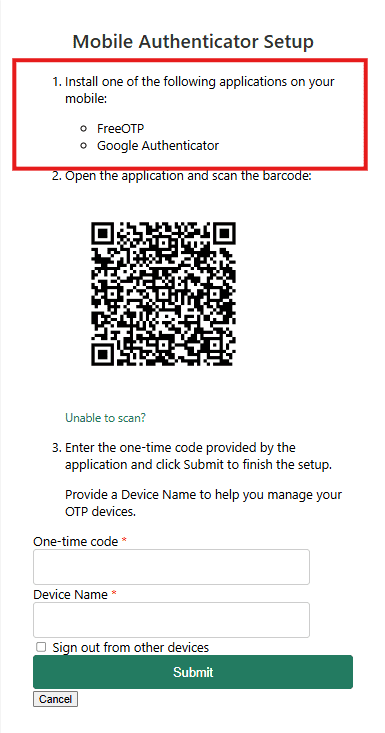
After you verify your email, the Mobile Authenticator Setup page opens. Open Google Authenticator or FreeOTP on your phone, scan the QR code, and enter the 6-digit code the app shows.
You'll use a new code from the app every time you log in. Each code expires after 30 seconds. Once you're set up, you can add a passkey so you don't need the app.
Screenshot
4Add your organization's details
Fill in the organization form. Required fields are in red. These include your organization's name, website URL, sector, and type. Add your FEIN (a nine-digit number), DUNS, or OPEID if you have them. They're optional, but recommended.
5Choose what your organization will do
Check every option that applies:
- We will be publishing data to the Registry. Then choose your Publishing Role (for example, Credential Organization) and your Publishing Method. The Registry Assistant API needs an extra review.
- We will be consuming data from the Credential Registry. Then choose a Consuming Method. These all need an extra review. Just want to view or download your own published data? You can do that in Credential Finder without consuming access.
- Register to Issuer Identity Registry (IIR). Choose this only if you're ready to register for IIR now. It needs at least two people on your account and a one-time registration fee. See Issuer Identity Registry for what's involved.
Picked the API, a consuming method, or IIR? See the next card. Sending those answers now saves a round of back-and-forth emails.
Have this ready if you chose the API, consuming, or IIR
Credential Engine reviews these options before it approves them. These are the questions the Accounts team will ask. Answer them when you submit, and the review can start right away.
Publishing with the Registry Assistant API
- Have you reviewed the Registry Assistant Handbook, and is the API the right fit for your organization?
- What will you publish (credentials, learning opportunities, competency frameworks, and so on), and about how many?
- Where does that data live today (for example, your SIS, LMS, or catalog system)?
- Who's your technical contact (name and email)?
- Is this part of a partner project or grant? If so, which one?
After that, you'll meet with Credential Engine's Engineering team. They'll walk you through mapping your data to the API.
Email these answersButton not opening your email? Send your answers to accounts@credentialengine.org.
Consuming Registry data (Graph Search API or data download)
- Have you reviewed the consuming resources? Could Credential Finder's view and download options cover your needs?
- Which method do you need: Graph Search API, data download for offline storage, or both?
- What will you use the data for, and who will see the result (for example, a state career portal, a research project, or an internal dashboard)?
- Which data do you need (types, states, organizations, or all of it)?
- Who's your technical contact (name and email)?
After that, you'll meet with someone from Credential Engine to talk through your use case and next steps.
Email these answersButton not opening your email? Send your answers to info@credentialengine.org.
Registering for the Issuer Identity Registry (IIR)
IIR has its own requirements on top of a regular account. Check that you have these before you choose it:
- At least two people from your organization with user accounts that use your organization's email domain (not personal email).
- Your organization's legal name, commonly used name (if different), website, logo URL, general email address, physical address, and a short description.
- At least one identifier: FEIN, DUNS, or OPEID for US organizations, or the equivalent outside the US.
- Someone who can pay the one-time $140 registration fee by credit card or bank transfer (ACH) within 30 days. If payment isn't received in time, the application is withdrawn (you can reapply any time).
- A developer or technical staff member who can submit your organization's Decentralized Identifier (DID) after approval.
The full process, from application to annual confirmation, is on the Issuer Identity Registry page. Applying as a third-party publisher, on behalf of other organizations? Email iirservice@credentialengine.org before you apply.
Email the IIR teamButton not opening your email? Send your answers to iirservice@credentialengine.org.
6Add publishing estimates
For each type of data you plan to publish, select Add New Publishing Estimate and enter about how many you'll publish. Rough numbers are fine. You can publish more or fewer later.
7Save and submit for approval
Choose Save and Submit for Approval to send your account to Credential Engine for review. Not ready yet? Save Without Submitting keeps it as a draft. A draft won't be reviewed.
You'll get an email when your account is reviewed:
- Bulk upload or manual entry: once your account is approved, you can start publishing.
- API, consuming, or IIR: if you have a few minutes, send your answers now using the buttons in Have this ready under step 5. It's the fastest way to get reviewed. No time right now? That's fine. Someone from the team will email you the same questions, and you can reply when you're ready.
Join an existing account
If your organization is already in Credential Finder, you'll need a user account connected to it. Don't create a second organization.
1Ask a colleague who's already on the account
If you know who manages your organization's account, ask them to add you. They can follow Add users to your account below. You'll get an email invitation to set up your login.
2Don't know who that is? Email the Accounts team
Email accounts@credentialengine.org with your name, your role, your organization's name, and a link to its Credential Finder page. The team will connect you or put you in touch with the right person.
Some colleges and universities were added for you
Credential Engine created some organization accounts using basic data from IPEDS (see organizations published through Credential Engine OPEN). Nobody at the institution manages these accounts yet. If yours is one of them, the Accounts team will invite you to take ownership. Then you can add more information about your organization. Don't remove or change its Organization Identification Codes unless you have to.
Manage users and permissions
1Add users to your account
- Log in to the Accounts System and select Account Dashboard.
- Under My Organization, open the Users tab.
- Scroll to the bottom and select Add User.
- Enter the person's information and select Invite. They'll get an email asking them to verify their account and set up their authenticator app.
2Let a third party publish for you
Once the third-party publisher sends a request, you'll be notified. To approve it:
- From your Account Dashboard, open the Third Party Publishing tab.
- Under Pending Publisher Requests, select Grant Permission.
Publishers you've already approved are listed under Current Publishers.
3Publish for another organization (third-party publishers)
- From your Account Dashboard, select the green Third Party Publishing (Publisher) tab under your organization.
- Select Request Publishing Permission From a New Organization.
- Search for the organization and request permission.
The organization is notified and can grant you access. Each organization needs its own approved account first. If it doesn't have one, it should start at step 1.
Log in and fix login problems
Every login uses multi-factor authentication: a 6-digit code from your authenticator app plus one other way to prove it's you.
1Log in
Go to the Accounts System. Enter the current code from your authenticator app along with one of these:
- Your email and password
- Your email and a code sent to your email
- Your Google account
2Optional: set up a passkey for faster logins
A passkey lets you log in with Face ID, Touch ID, Windows Hello, or your device PIN instead of the authenticator app. Log in once the usual way, then follow the instructions in the message at the top of the Account Dashboard.
Screenshot

3If your code doesn't work
- Make sure you're using Google Authenticator or FreeOTP. Microsoft Authenticator and Duo Mobile aren't supported.
- If your app has more than one account in it, check that you're using the code for Credential Engine. Enter it before it expires (codes change every 30 seconds).
- Still not working? Delete the Credential Engine entry in your app and scan the QR code again to reset it.
If none of that works, email accounts@credentialengine.org.
After your account is approved
Log in to the Credential Publisher to finish your organization's profile and start publishing. See get started publishing for your options. You can add more information about your organization any time.
Stuck, or not sure which option to pick? Email the Accounts team at accounts@credentialengine.org.